The ITHACA 4DGS cloud service turns your captures into 4D Gaussian Splatting holograms on cloud GPUs, straight from your browser. You upload a capture, choose one of three services, see the price before launching, and get the results in your personal storage, ready to watch in 4D, share or bring into Unity.
Everything happens in two pages of your ITHACA account: Cloud renders, to set up and launch a job, and My data, to find your captures and results.
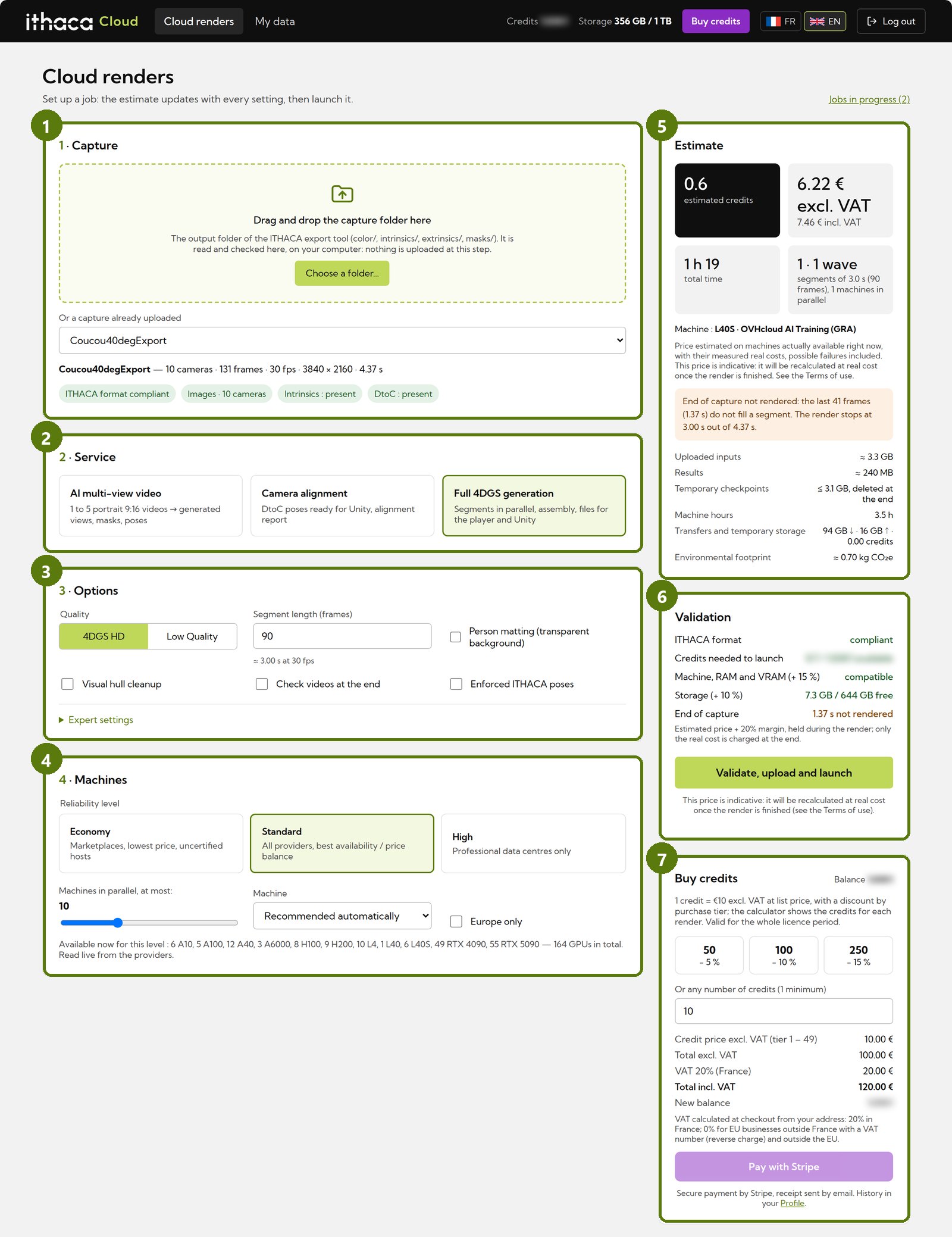
How it works
- Bring a capture. The output folder of the ITHACA export tool, or one or more videos for the AI service.
- Pick a service and its options. The estimate updates live with every setting.
- Check and launch. The capture is uploaded and the job starts right away on the machines shown in the estimate.
- Follow the job stage by stage, with a live preview.
- Get the results in My data: watch in 4D, download, share, add sound.
The top bar of both pages shows your credit balance and storage, a shortcut to buy credits, and the language switch (French / English).

1 · The capture
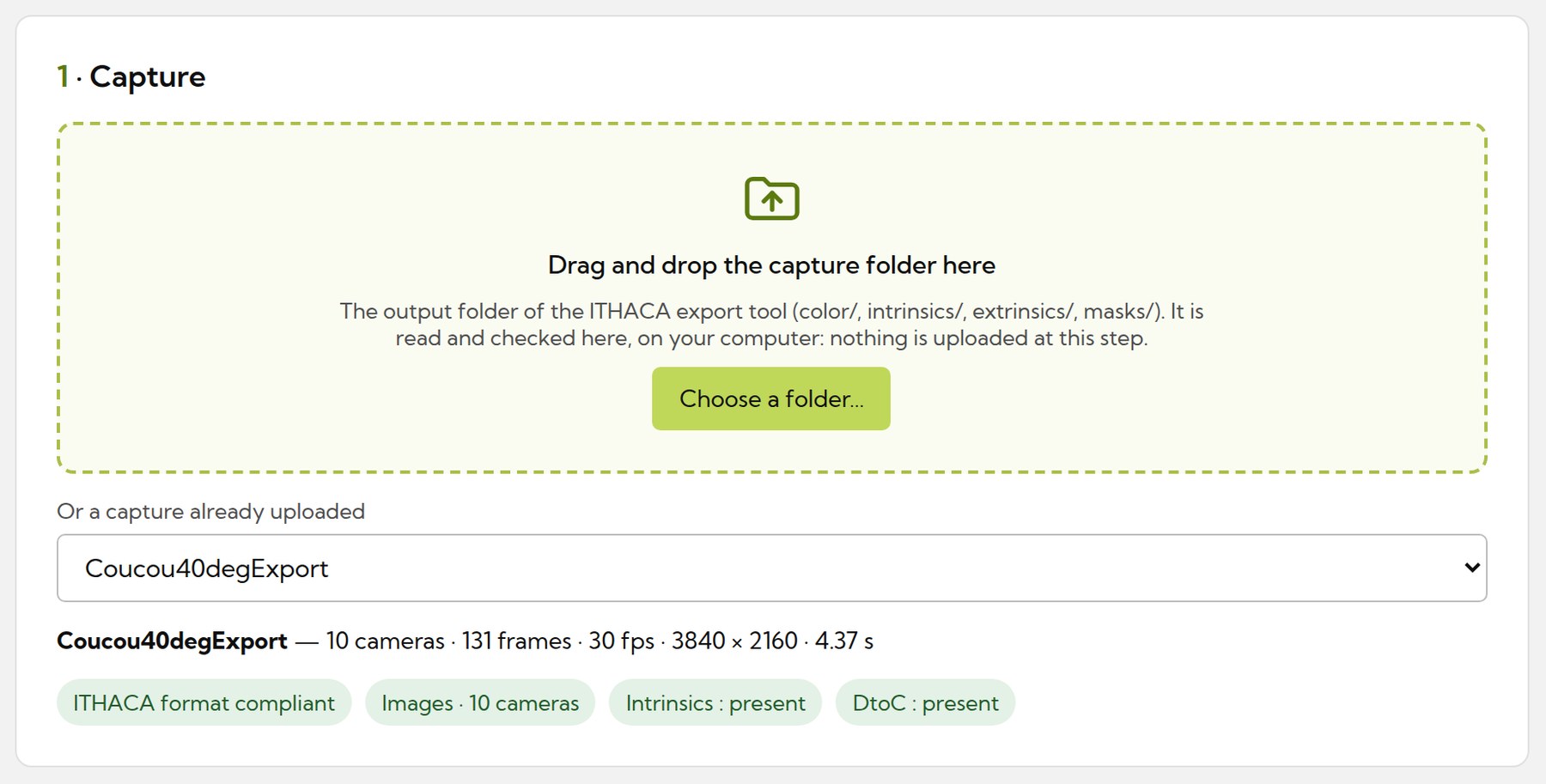
Drag and drop the capture folder (color/, intrinsics/, extrinsics/, masks/, and optionally a sound/ folder), or choose a capture you already uploaded. The folder is read and checked in your browser: nothing is uploaded at this step. Green labels confirm what was found (ITHACA format, cameras, intrinsics, calibrated positions…). A capture that does not comply cannot be uploaded: the list of issues to fix is shown instead.
2 · The three services
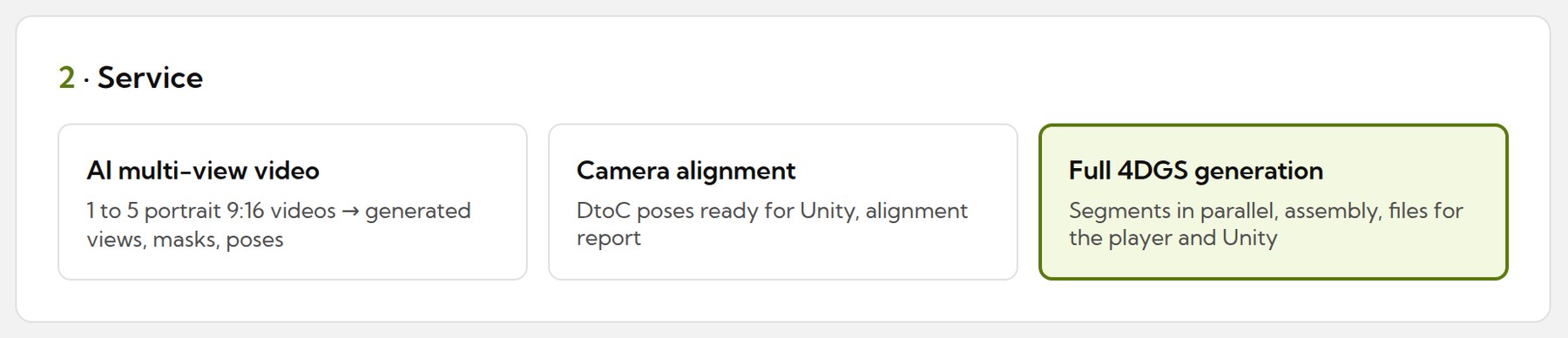
AI multi-view video
From 1 to 5 portrait videos (9:16), AI generates a full ring of viewpoints around the person: generated views, masks and camera positions, ready for 4DGS generation.
Camera alignment
Computes the camera positions of a multi-camera capture: DtoC poses ready for Unity, an alignment report and a point cloud you can view in 3D.
Full 4DGS generation
Builds the 4D hologram: the capture is cut into segments computed in parallel on several machines, then assembled into one file for the web player and Unity, with an optional crossfade between segments.
AI multi-view video options
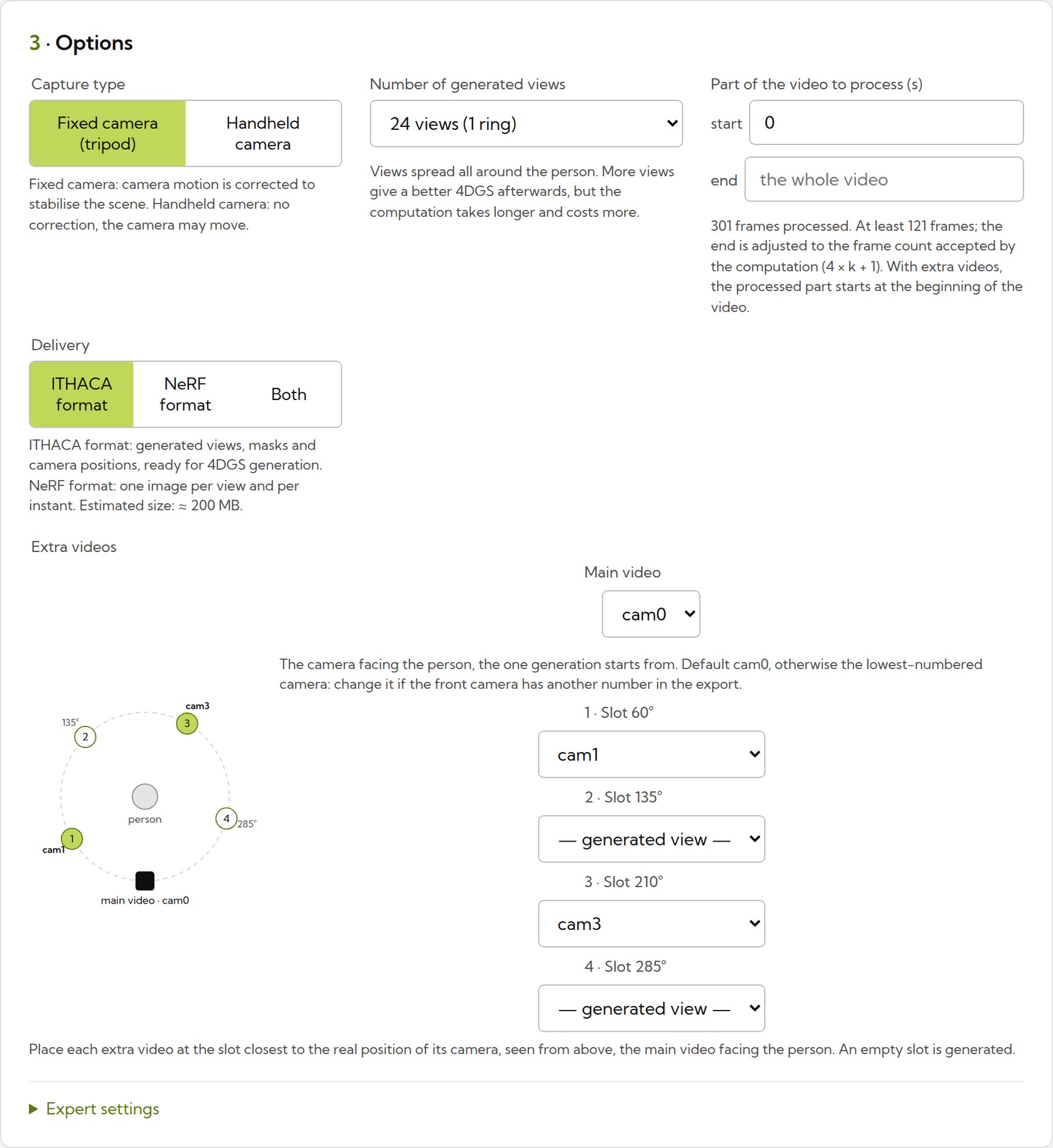
- Capture type: fixed camera (tripod), where camera motion is corrected to stabilise the scene, or handheld camera, left free to move.
- Number of generated views: 24 (1 ring), 48 (2 or 3 rings) or 72 (3 rings). More views give a better 4DGS afterwards, but take longer and cost more.
- Part of the video to process, from at least 121 frames up to the whole video.
- Extra videos: place each real extra camera at the slot closest to its position seen from above; empty slots are generated.
- Delivery: ITHACA format (views, masks and camera positions, ready for 4DGS), NeRF format, or both.
Full 4DGS generation options
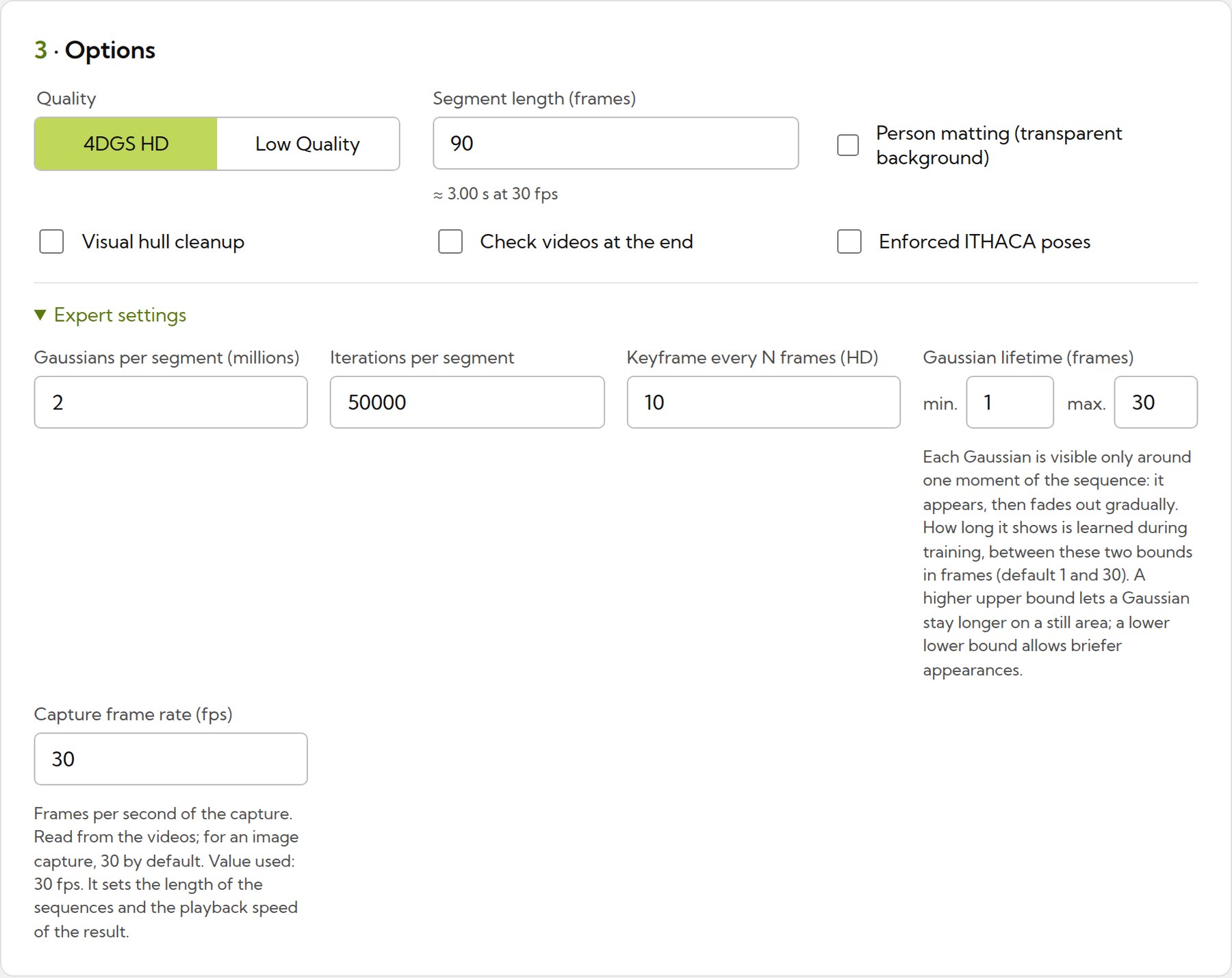
- Quality: 4DGS HD, or Low Quality for a lighter, less detailed file.
- Segment length in frames: each segment is computed on its own machine, all in parallel.
- Person matting for a transparent background, visual hull cleanup, enforced ITHACA poses (the calibrated camera positions of the capture) and an optional check video at the end.
- Expert settings: Gaussians per segment, iterations, keyframe spacing, Gaussian lifetime and capture frame rate.
- Transition between sequences (expert setting, HD): a crossfade between two consecutive segments instead of a hard cut. For example, 30 frames at 30 fps give a one-second crossfade, 15 frames out of a segment and 15 into the next; each segment is trained on these extra frames. 0 by default (no transition).
Camera alignment has no option to set: it runs on a single machine.
3 · Machines
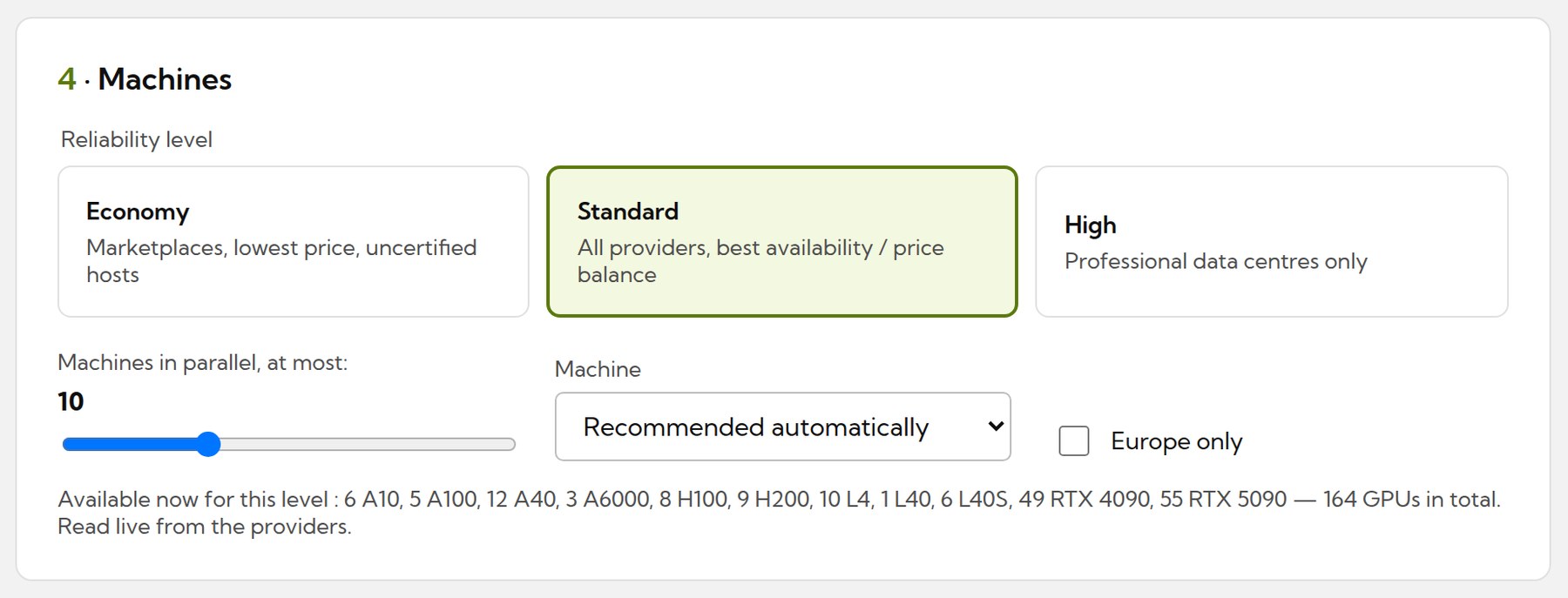
Choose the reliability level: Economy (marketplaces, lowest price), Standard (all providers, best balance) or High (professional data centres only). You can limit the number of machines working in parallel, pick a machine type or keep the recommended one, and keep the computation in Europe. The list of GPUs available right now is read live from the providers.
4 · The estimator
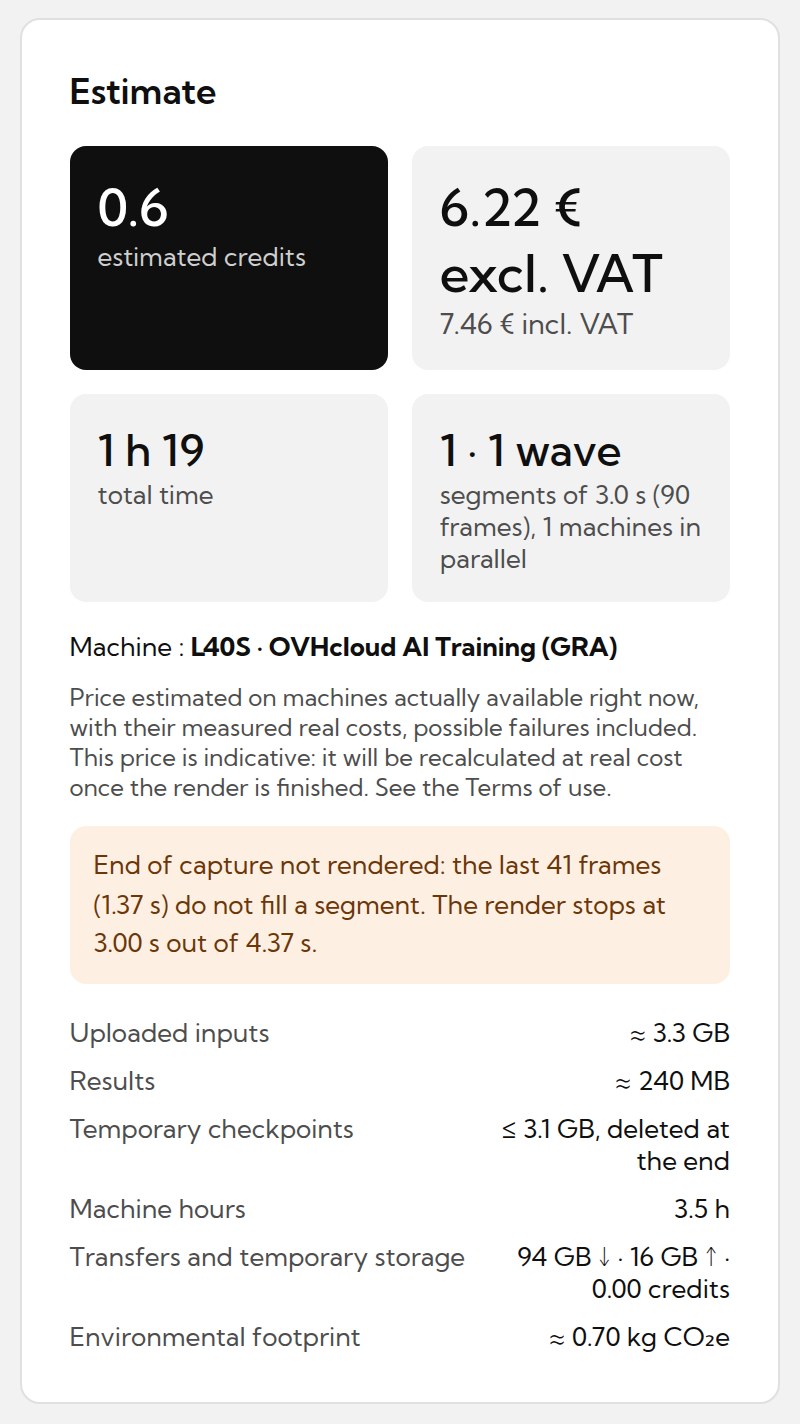
The Estimate panel gives the price in credits and in euros, the total time and how the work is split (segments, machines in parallel, waves), before anything is launched. It is computed on the machines actually available at that moment, with their measured real costs, possible failures included.
Below, the details: size of the uploaded inputs and of the results, temporary checkpoints (deleted at the end), machine hours, transfers and the environmental footprint. Warnings appear here too, for example when the last frames of a capture do not fill a whole segment and will not be rendered.
The price is indicative: the render is always billed at its real cost once it is finished.
5 · Validation and launch
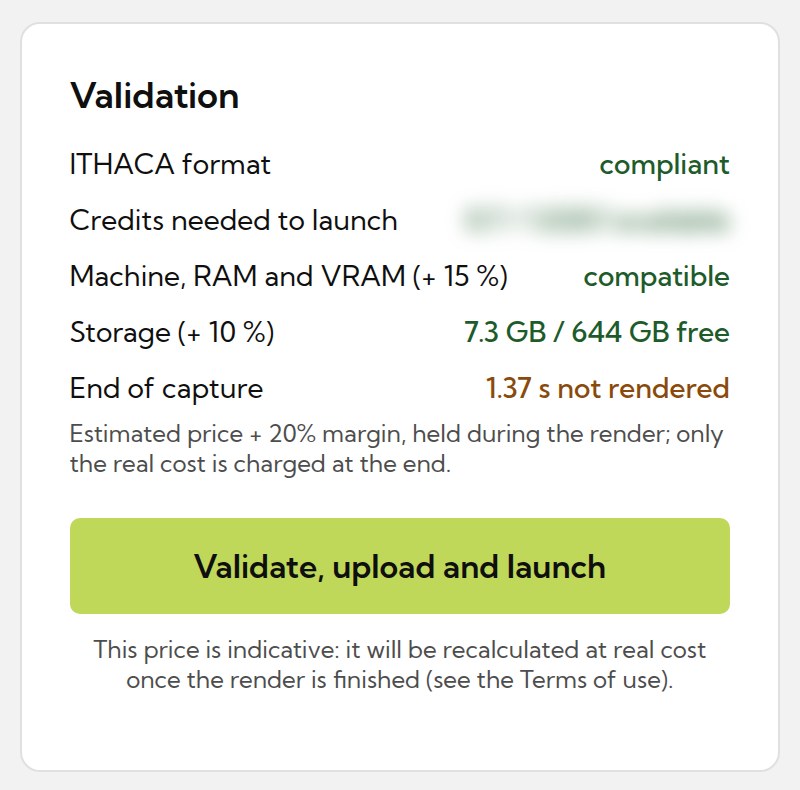
Before launching, every condition is checked: ITHACA format, credits available, machine memory (with a 15 % margin) and storage space (with a 10 % margin). The launch stays blocked while a check is red.
When you launch, the estimated price plus a 20 % margin is held on your balance during the render; only the real cost is charged at the end, and the rest is released. If there are not enough credits, no machine is rented.
6 · Buying credits
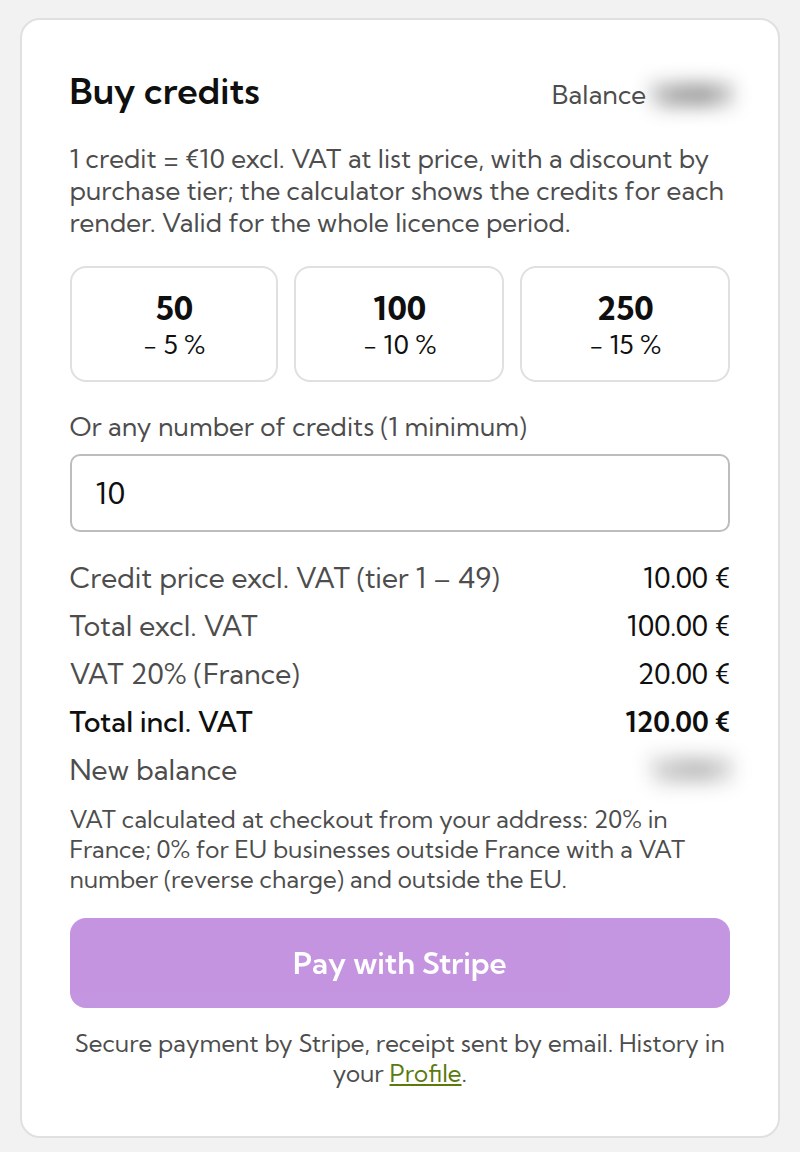
Renders are paid in credits. One credit is worth €10 excl. VAT at list price, with a discount by purchase tier: −5 % from 50 credits, −10 % from 100 and −15 % from 250. You can also buy any number of credits (1 minimum); above 2,500 credits, the price is on quotation.
The panel shows the price per credit, the totals excluding and including VAT, and your new balance. VAT is calculated at checkout from your address: 20 % in France, 0 % for EU businesses outside France with a VAT number (reverse charge) and outside the EU.
Payment is made securely with Stripe; a receipt is sent by email and the history is in your Profile. Credits are valid for the whole licence period.
7 · Following a render
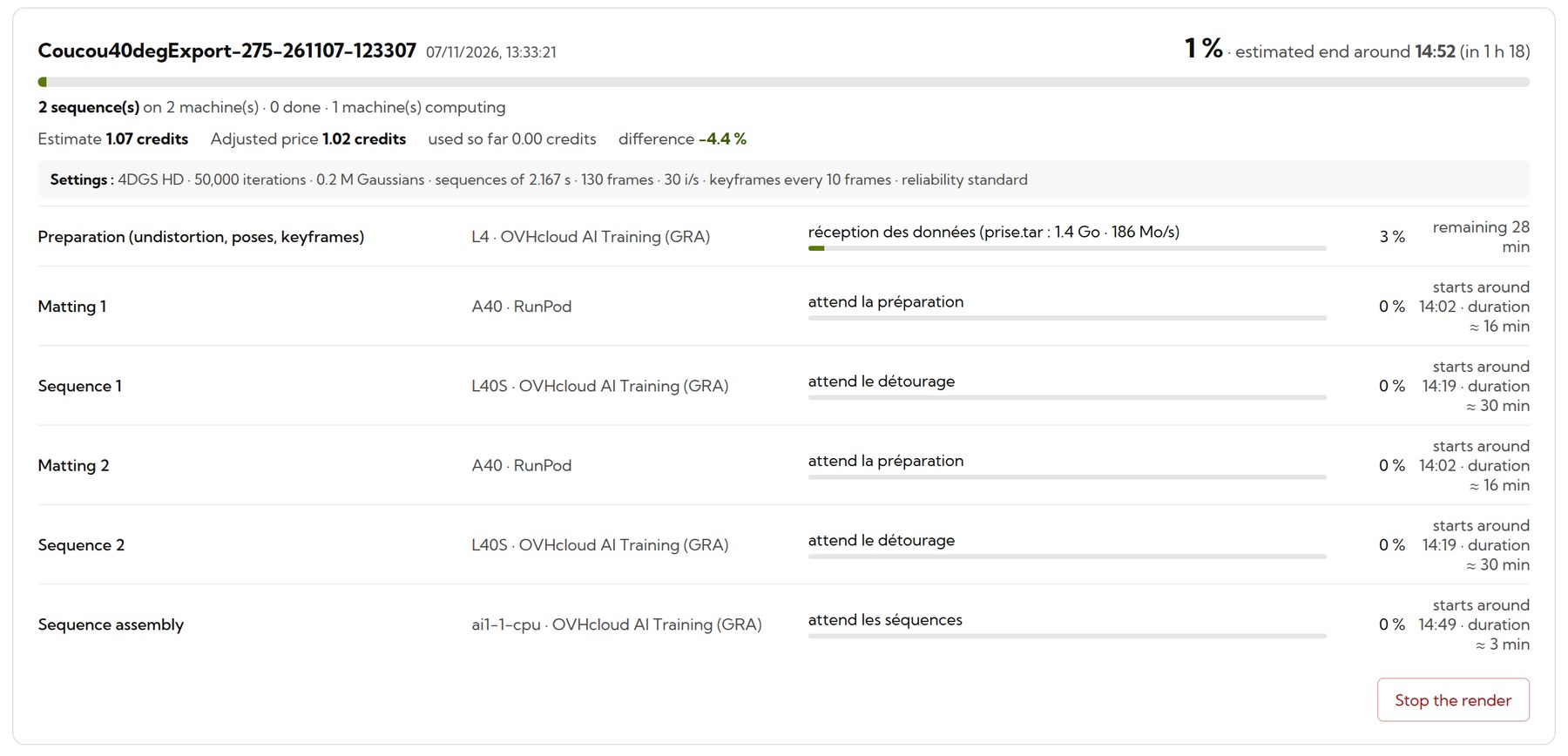
Jobs in progress show each stage (preparation, keyframes, matting, sequences, assembly), the machine it runs on, its progress and the estimated end time. On long captures, the keyframes are computed on several machines at once when this is faster. If no suitable machine is free, the job is shown as Queued and starts as soon as one is available. The adjusted price and the credits used so far are updated as the render goes. A render can be stopped at any time; a stopped or failed render can be relaunched: completed sequences are kept and the others resume from their last save point.
8 · My data
My data is your personal cloud storage. The bar at the top shows the space used by your inputs, your results and the temporary files of renders in progress.

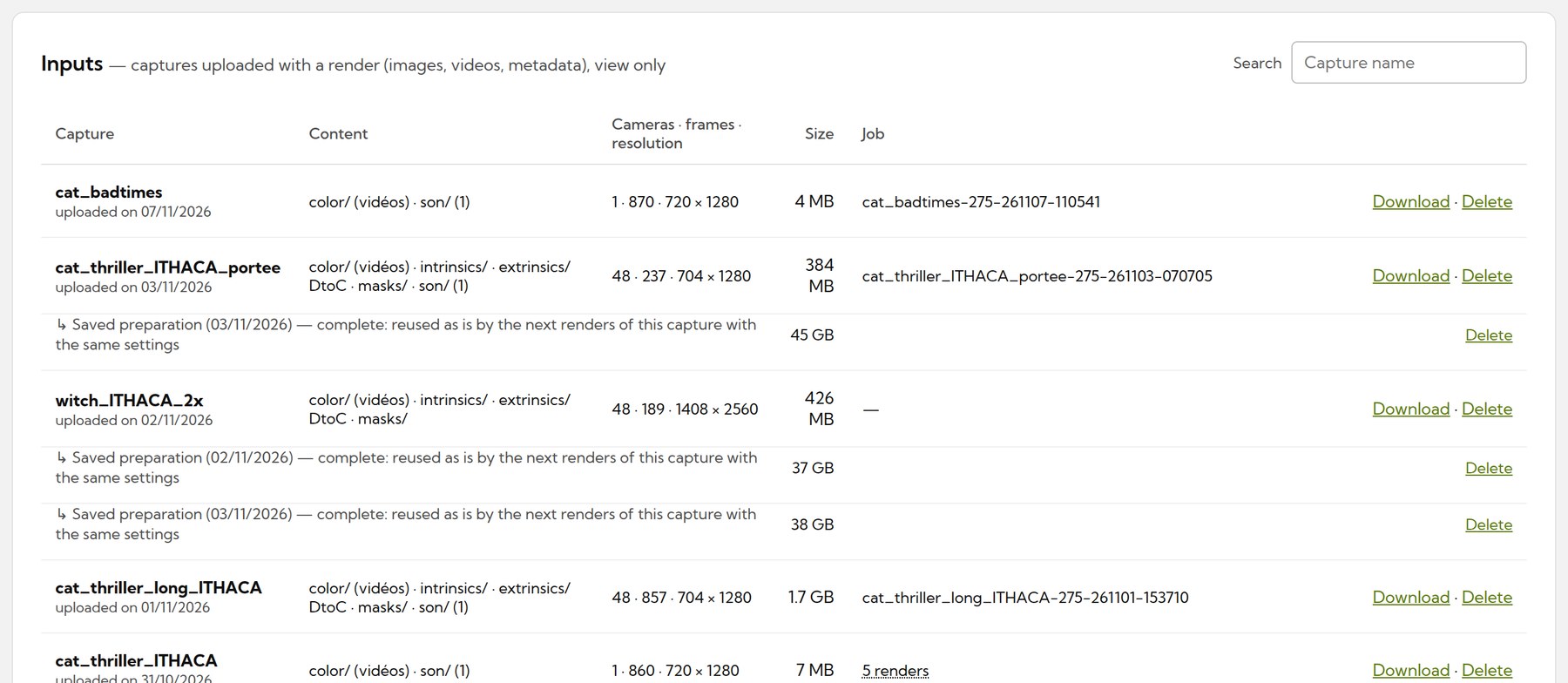
Inputs lists the captures you uploaded, with their content, cameras, frames, resolution, size and the jobs that used them. A capture can be reused for new renders without uploading it again; its saved preparation is reused as well when the settings are the same, which saves time and machine hours.
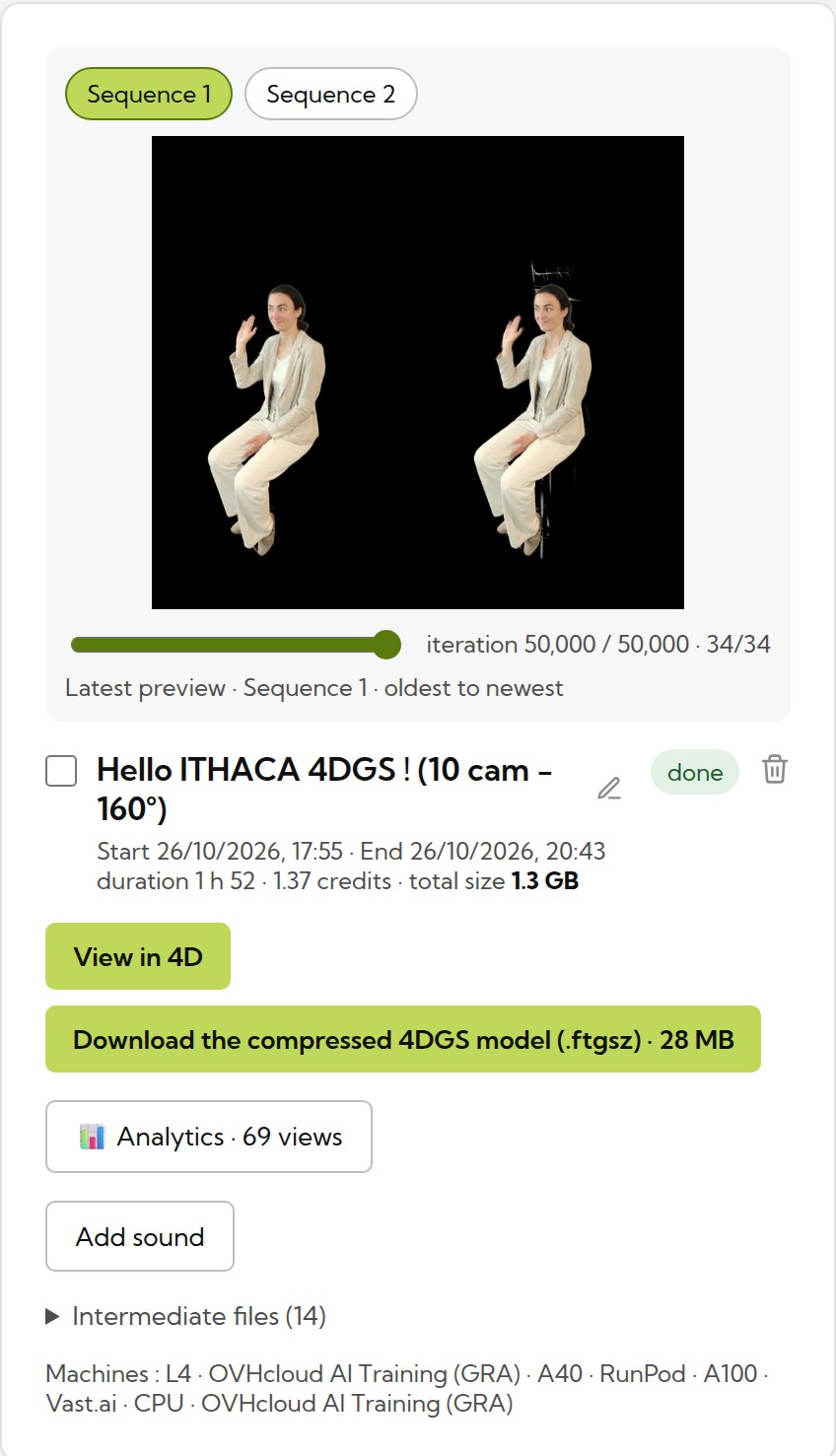
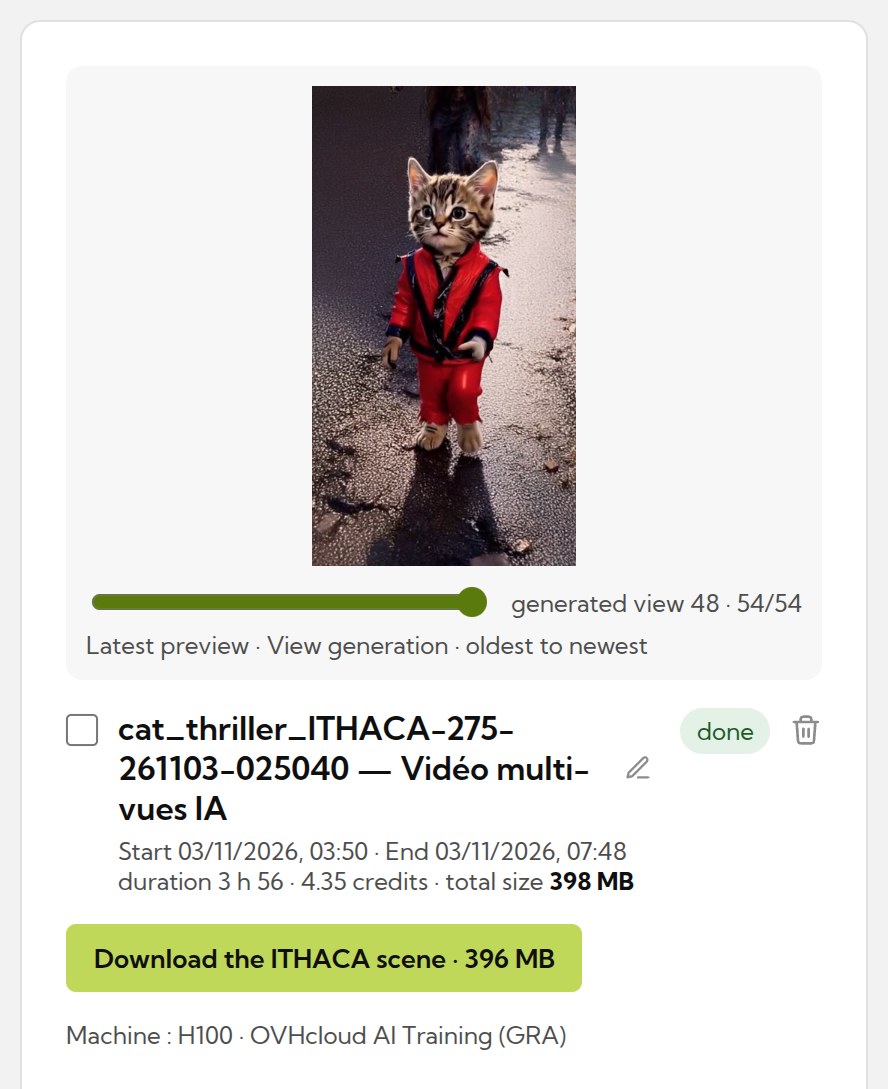
Results holds one card per job, filtered by service. Each card shows the latest preview, the dates, the duration and the credits used, and the downloads: the 4D video in a single file (.4dgs) for the web player and Unity, or the ITHACA scene produced by the AI service, ready to be uploaded as a new capture for a 4DGS generation. A 4DGS result also offers View in 4D, sharing with its analytics, sound tracks, Convert to mesh and the intermediate files.
9 · Watch, share, bring into Unity
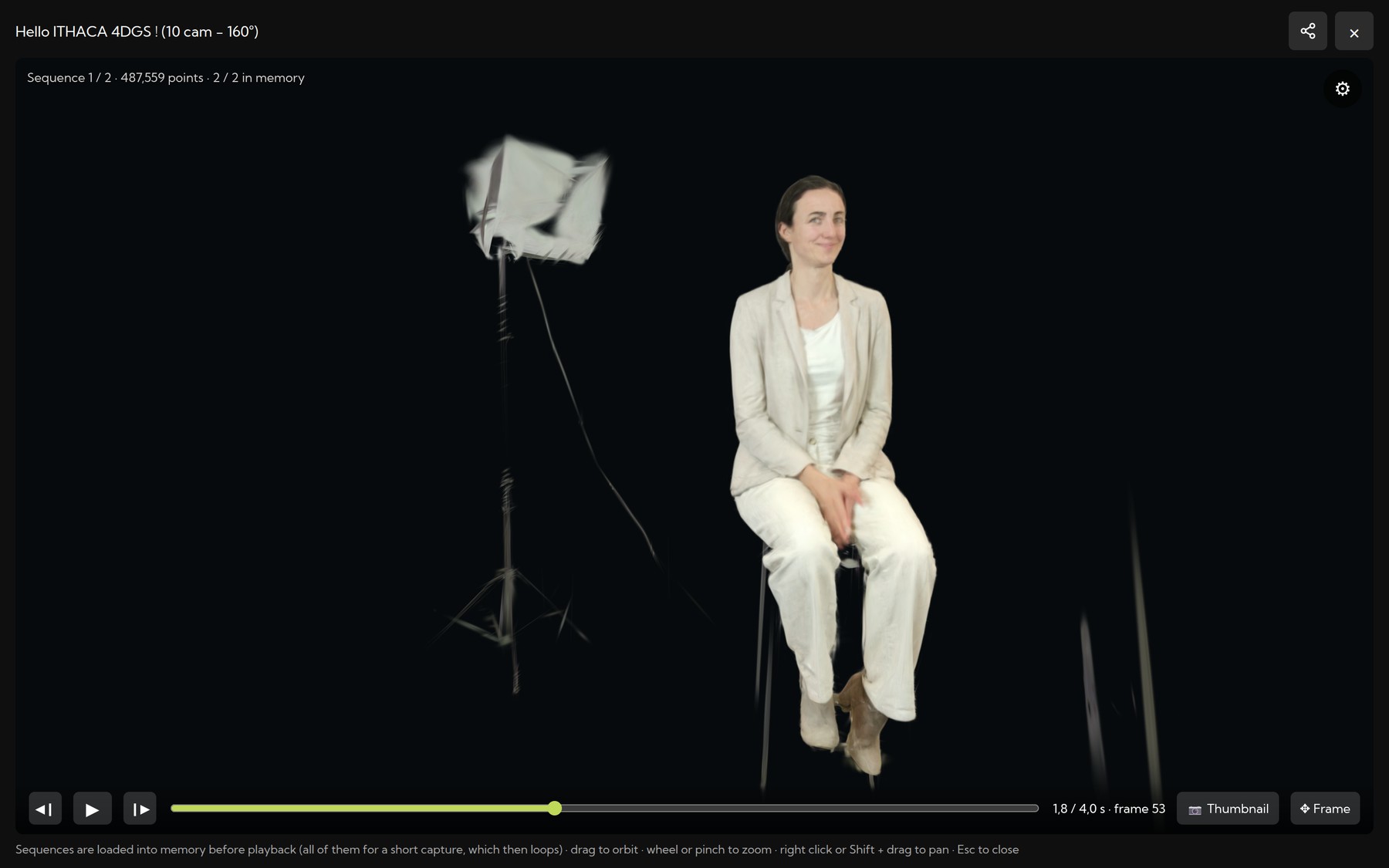
View in 4D opens the hologram in the web player, in full screen: drag to orbit, wheel or pinch to zoom, right click or Shift + drag to pan, with play controls, sound, thumbnail and framing. On a phone or a headset, the hologram can be placed in your room in augmented reality. Share creates a link anyone can open without an account, or a code to embed the player in a website, with anonymous viewing analytics. The same .4dgs file plays in Unity with the ITHACA 4DGS package.
10 · Convert to a dynamic mesh
A finished 4DGS render can be turned into an animated textured mesh that follows the motion, compressed as V-DMC (.vmesh), the MPEG standard for dynamic meshes. Click Convert to mesh on the result card: the conversion creates a new render in My data, and the original 4DGS render is not changed.
- Frames: the whole take or a range.
- Texture resolution and texture quality, from sharper to lighter.
- Tracking tolerance: lower values give less drift and more mesh changes.
- Geometric detail: vertices shown per frame.
Like a render, the conversion is estimated before launch, computed on a rented GPU machine and paid in credits. The mesh plays in the 4D web player, in augmented reality on a phone, and can be shared with its own link.